
OBYNWatch — what to watch
Keep a list of the films, series and cartoons you want to watch, rate what you have watched — and get advice on what to watch next, with the reason for each. It works entirely in the browser: no server for your data, no sign-up and no ads.
Search and adding
The Add button searches the catalogue of The Movie Database (TMDB): films, series and cartoons with posters, release years and ratings. The plus on a result puts it into Want to watch (the app asks first); tapping the result opens a card with the overview, genres and running time.
If a film is not in the catalogue or you are offline, add it by hand: title, kind, year and a note. Such a title has no poster, and no advice comes from it.
Statuses and the list
Every title has one of four statuses: want to watch, watching, watched or dropped. What you have started is on the home screen under Watching now, and the whole list is in Watchlist, with search, a Films / Series / Cartoons filter and sorting by date, year, rating, running time and title.
Everything the catalogue marks as animation counts as a cartoon — feature-length cartoons and animated series alike. You can change the kind by hand in the card.
Ratings from 1 to 10
Mark a title Watched — the app asks for your rating and the day you watched it. You can also rate right in the card: tapping the same number again removes the rating. Your rating shows on posters in colour: 8–10 green, 5–7 amber, 1–4 red.
Rate what you've seen shows well-known films, series and cartoons one at a time: rate the ones you have seen and skip the rest. Five to ten ratings — and the advice is already yours.
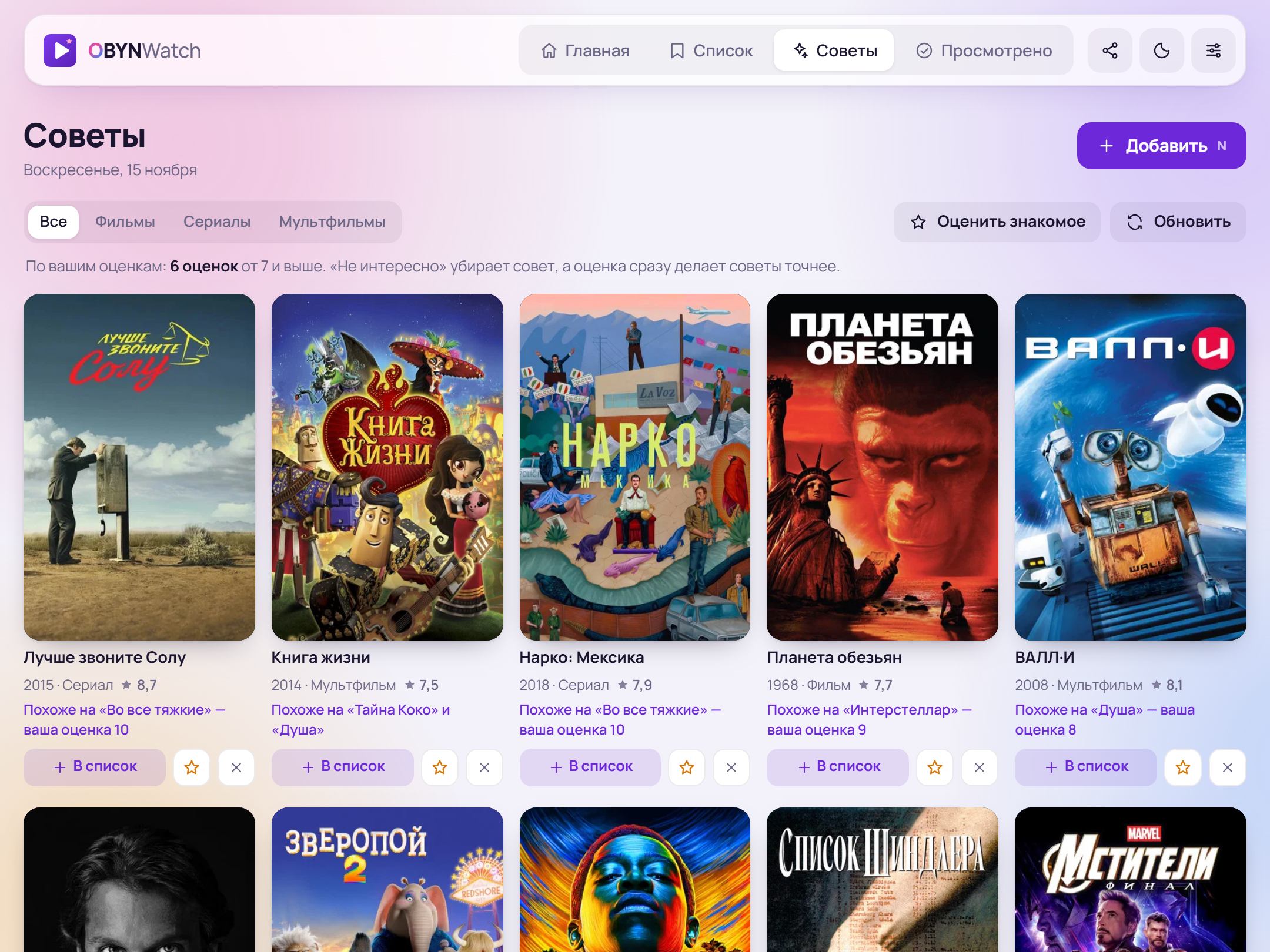
Advice: what to watch next
Advice comes from what you rated 7 and above: for each such title the catalogue knows similar ones, and a title similar to several of your favourites rises higher. Then your taste in genres counts: favourite genres lift a piece of advice, genres you rate low push it down. Each piece of advice says why it is there: “Like Interstellar — you rated it 9”.
- Add puts it into Want to watch, the star rates it if you have already seen it, and the Not interested cross removes it after a question.
- Everything hidden is in the Not interested list (Settings and data → Advice): you see what was removed and when, and can bring any title back.
- Until you rate anything, the advice shows what is popular this week.
Yearly summary
The Watched section shows everything you have watched, for a year or all time: how many films, series and cartoons, your average rating, how many hours went to films, how many 9s and 10s, and the genres you watch most, with the average rating for each. Dropped titles have a tab of their own.
Backups and CSV
Settings and data → Save a backup downloads a JSON file with your whole list, ratings and settings. You can load it back on this or another device. The list as a spreadsheet saves a CSV for Excel or Google Sheets.
Loading offers two modes. Merge adds only what is not here yet and deletes nothing. Replace everything puts the content of the file in place of the current data and asks for a separate confirmation first.
Google Drive
Connect your own Google Drive, and a copy is saved there automatically after every change.
- The app can access only the file it created itself (
drive.file). The rest of your Drive is invisible to it. - You sign in to Google once; changes from other devices come in every few minutes and when you return to the tab.
- If the data changed both here and in Drive, the app asks: merge, take the Drive version or keep this browser's version.
- Disconnect Google Drive forgets the access; the file in Drive stays.
Install and use offline
OBYNWatch installs as an app: its icon appears on your phone's home screen or your desktop. After the first visit the list, ratings and summary open without internet; search and new advice come back once you are online.
iPhone and Mac: an app on the Home Screen or in the Dock has its own storage. Data from Safari does not get there: move it with a backup or through Google Drive.
Privacy and the TMDB catalogue
Your list, ratings and notes are stored only in your browser. The app has no server for your data, no analytics, no ads and no trackers.
Films, posters and overviews come from the TMDB catalogue through the app's server: the catalogue receives only the request itself — the search text or the number of a specific title — without your name, account or the rest of your list. Posters load from the TMDB image server. Details are in the privacy policy.
TMDB: This product uses the TMDB API but is not endorsed or certified by TMDB.